
Table of Contents
KEY TAKEAWAYS
📘 Toolchain ready? The next step is writing C worth compiling. My complete Master C & Embedded C course takes you from zero to hardware-ready code — free on YouTube (53 videos), or guided on Udemy with quizzes, certificate and my Q&A support.
- MinGW provides GCC and Make tools for compiling C/C++ programs on Windows
- Download and install MinGW, then add its
bindirectory to the system PATH - After installation,
gccandmakecommands are available in the command prompt - MinGW enables using standard Unix-like build tools and Makefiles on Windows
Setting up MinGW make on Windows is essential for compiling C/C++ projects and embedded systems development.
MinGW (“Minimalist GNU for Windows”) is a complete runtime environment for gcc to support binaries native to Windows 64-bit and 32-bit operating systems. With MinGW we can build C programs for windows. This tool is also required to build C-programs for microcontrollers. We will be seeing how to write codes for microcontrollers without using the any IDE. And we will use the MinGW compiler along with the microcontroller family toolchain to build the code. We will install mingw and configure it for running the “make” files
This post is the first step in the complete build process. In this post, we will look at installing mingw and adding it to the environment variables.
1.1 Download MingGW
It contains Make that we will be using in Command Prompt on Windows 10.

1.2 Install MinGW
We will now see how to install minGW. In this step, we will look at the important options that need to be selected.
Keep the Installation Directory the same as shown below.

1.2.1 Navigate to your Desktop
Open MinGW Installer. Select Basic Setup, navigate to Packages and Right click on “mingw-developer-toolkit-bin”, “mingw32-base-bin” and “msys-base-bin” Packages and select Mark for Installation.

1.2.2 Navigate to the Top left corner and Left click on Installation then click Apply Changes.

1.2.3 The packages should now be Green (if not, just repeat the process), if they are successfully installed then close the Installation Manager.

1.3 Rename to Make
Navigate to C:MingGWbin. Rename “mingw32-make” to “make”. This will make it easier to use Make in the Command Prompt.
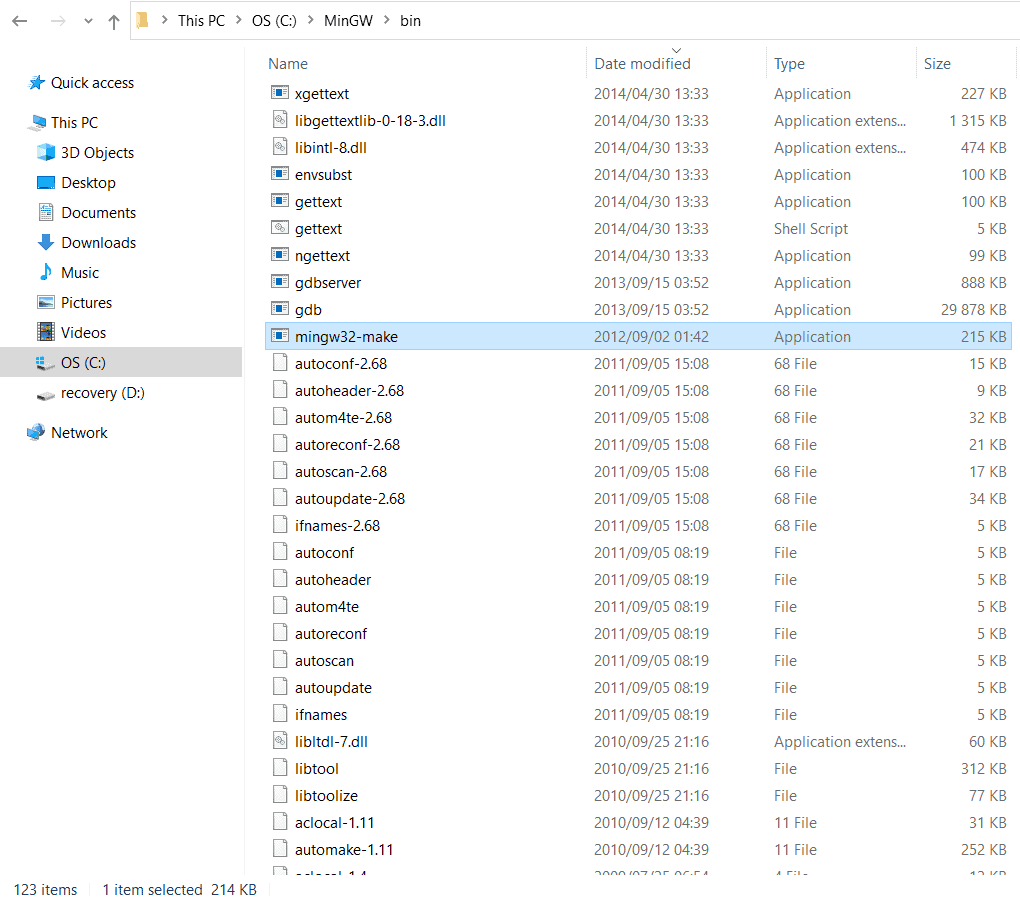
1.3.1 Let’s add Make for usage in Command Prompt.
Press the “Windows Icon” on your keyboard, search and open “Edit the system environment variables”.

1.3.2 Click on “Environment Variables”

1.3.2 Under “System variables”, scroll down to “Path” and double-click.

1.3.3 Click on “New” and add the location “C:MingGWbin” to environment variable and press “OK”.

1.4 Testing Make
Press the “Windows Icon” on your keyboard, search and open “Command Prompt”.

1.4.1 Type “make –version” to confirm that it works. Recheck Step 1.3 – 1.4 if it doesn’t work.


Vivek Bhageria — Lead Firmware R&D Engineer, 12+ years. Ex-Bosch (automotive powertrain), MusicTribe (real-time audio), medical devices. M.Tech BITS Pilani. I write at NerdyElectronics — practical, register-level embedded systems for engineers who want to understand what’s actually happening under the hood.